🛠️
Add the SPRS Cyber Vendor User role in PIEE
PUBLIC
👉🏼 How to:
- Log in to PIEE and go to My Account → Roles → Add Additional Roles.
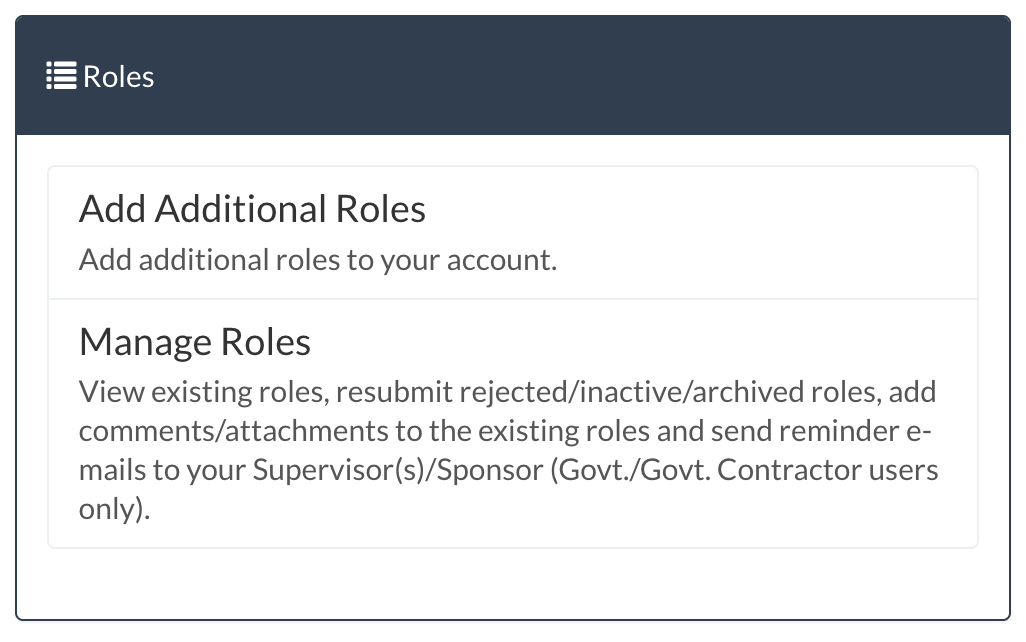
- Select Application: From the application dropdown, choose “SPRS – Supplier Performance Risk System.”

- Select Role: In User Roles for SPRS, select “SPRS Cyber Vendor User.”
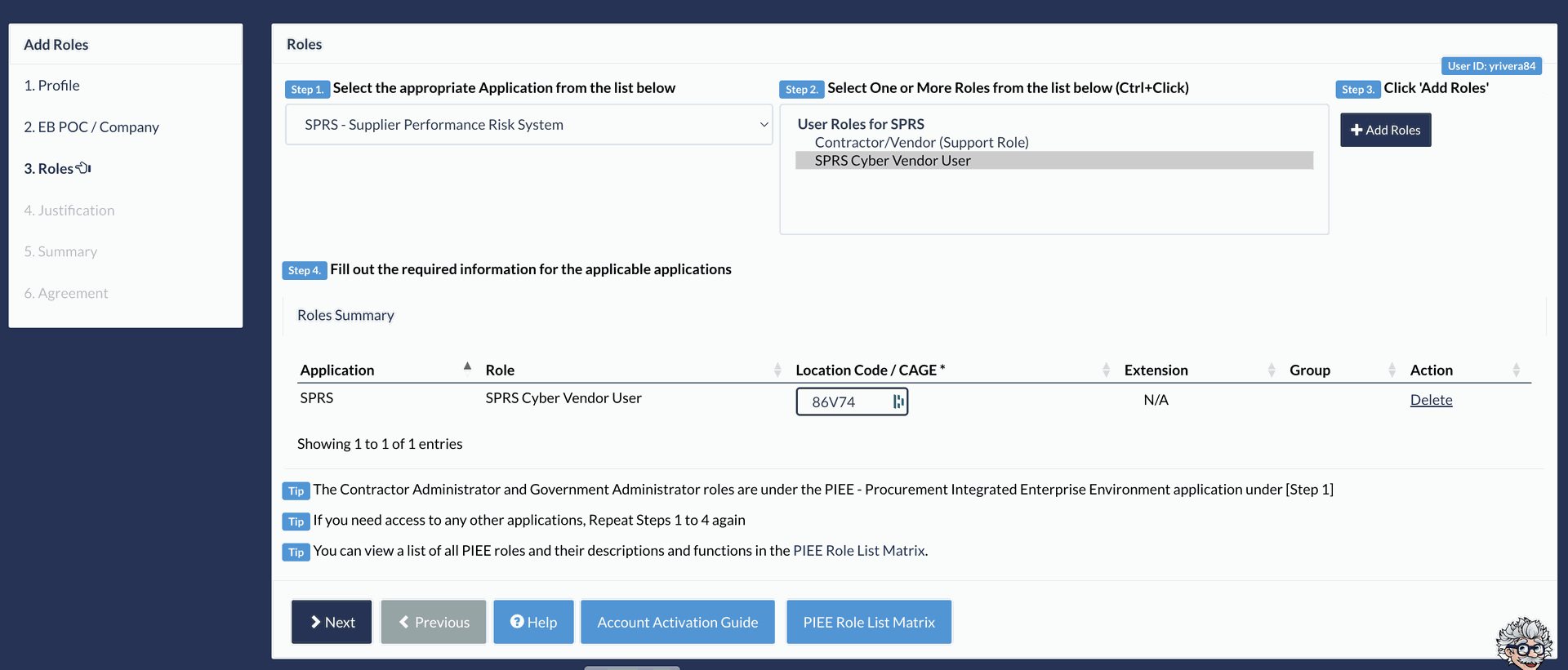
- Enter CAGE: In Location Code/CAGE, enter your company CAGE (e.g., 86V74). Leave Extension/Group blank unless your org uses it.
- Click Add Roles. Your selection appears in the Roles Summary grid.
- Click Next and complete the wizard pages:
- Justification: Brief justification (e.g., “Need SPRS access to submit CMMC assessments”).
- Summary: Confirm details.
- Agreement: Accept terms and submit.
- Approval & Activation:
- If your company has a Contractor Administrator (CAM) in PIEE, they may need to approve.
- Once approved, verify under My Account → Roles that you see Application: SPRS | Role: SPRS Cyber Vendor User | CAGE: [Your CAGE].
🎉 You’re done. You can now open SPRS from PIEE and proceed to the self‑assessment.
PUBLIC